
Start every org chart from the buying committee you expect
vizrm's September update adds Org Chart Templates, so every account starts with the seats you expect to fill, plus a rebuilt Views editor.

Every new account starts the same way: open an empty chart and build the structure already known: IT, Finance, Procurement etc. You did the same thing on the last account, and the one before that.
The September update removes that step and it makes it much faster to read what state the account is actually in.
Org Chart Templates
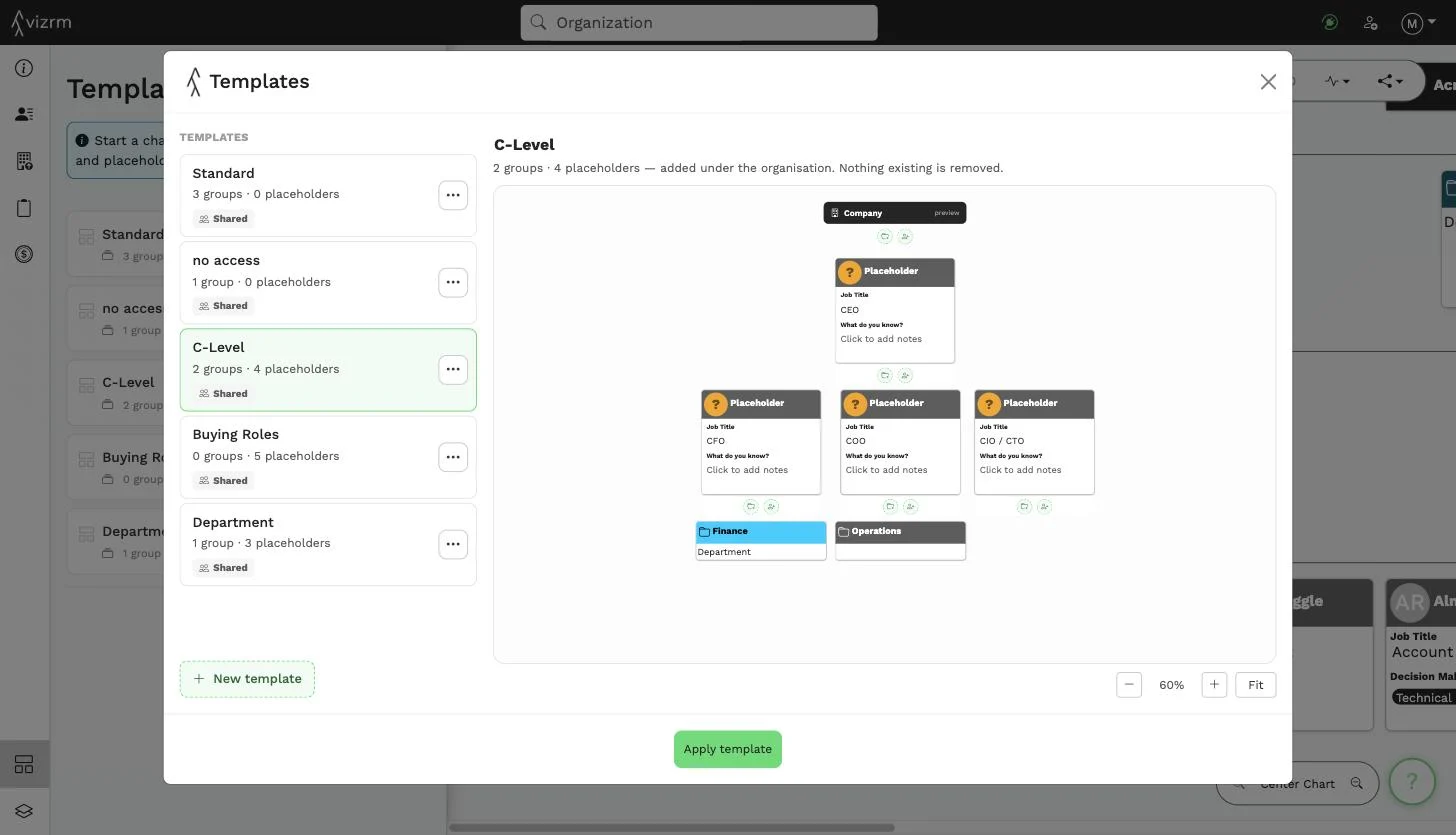
A template is a saved structure of groups and placeholders that I can apply to an org chart in one click.
- Groups are named, coloured clusters, usually departments or teams.
- Placeholders are the seats I expect to fill, each with a role and a note on what is known so far.
Applying a template
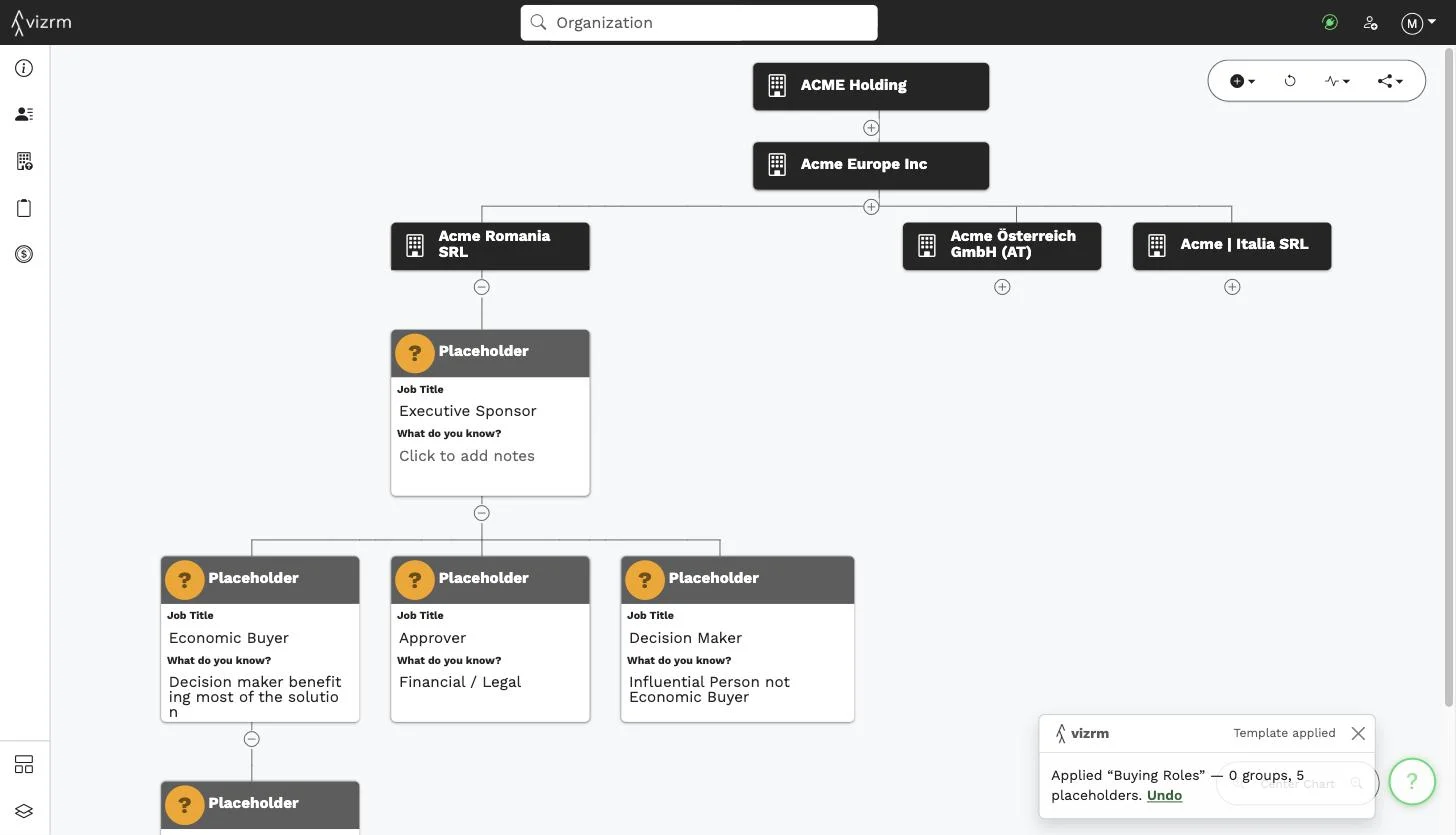
Open an org chart, click Templates on bottom left of the sidebar and pick a template. Click Apply template and the groups and placeholders land under the organization.
Existing contacts, groups and reporting lines already on the chart stay where they are, so you can apply a template to an account you already mapped.
Filling the placeholders
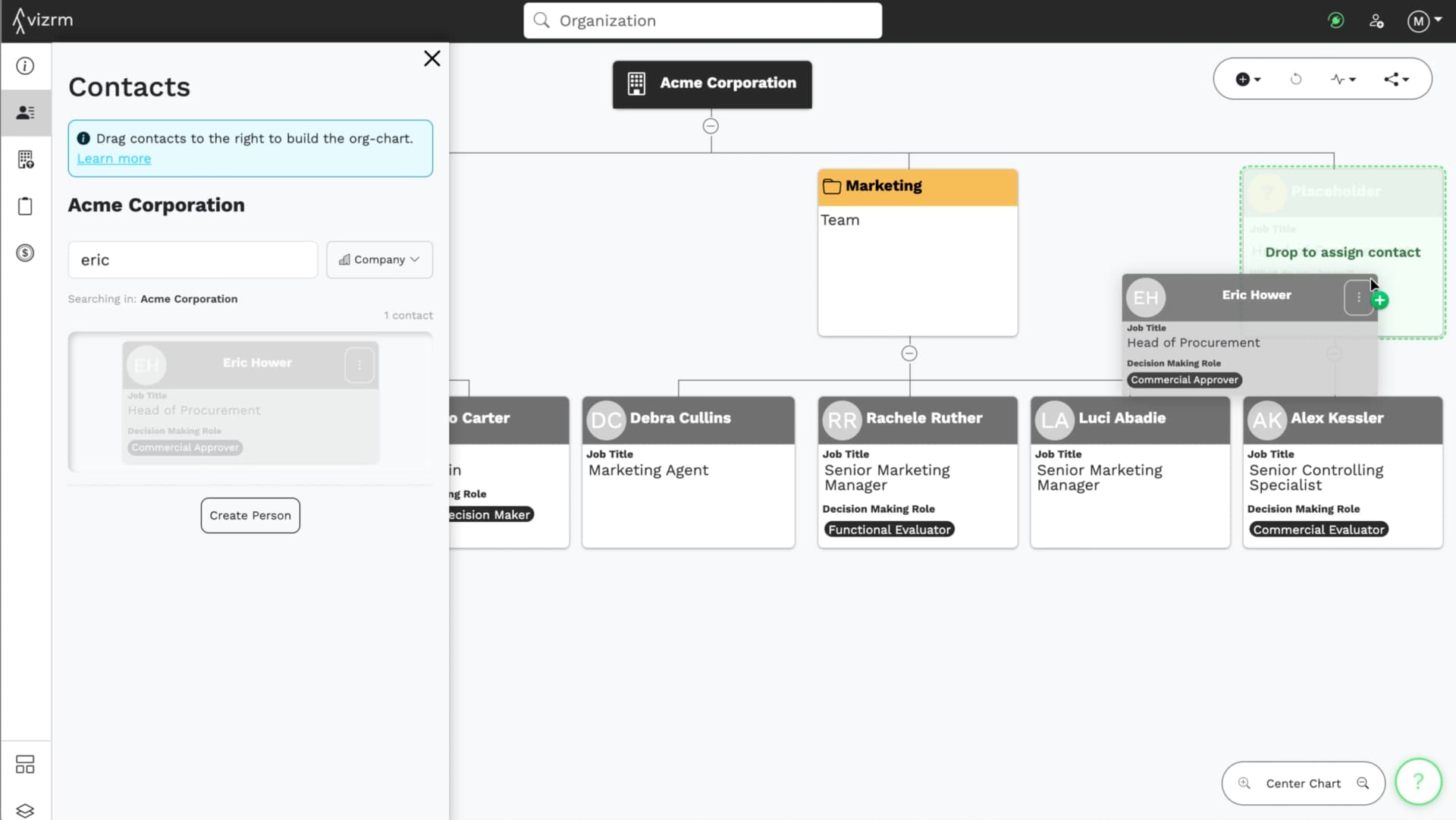
With increased numbers of placeholders in templates we made it easier to assign contacts to them:
When you work out who sits in a seat, drag the contact from the contact list onto the placeholder and it assigns the CRM contact. Alternatively you can still use Assign Person from the placeholder's menu to search your CRM or create a new contact on the spot.
One playbook for the whole team
Build your own templates from scratch, or duplicate one of the defaults and adjust it. Admins can share templates with the whole team. Every rep then maps every account against the same buying committee, and new starters get the team's way of working right away.
Views: put the account's state on the chart
A template gives the chart its shape. Views tell what's going on inside.
An org chart shows who reports to whom - the magic happens when you see which of these people anyone has actually spoken to, who signs, or who went quiet.
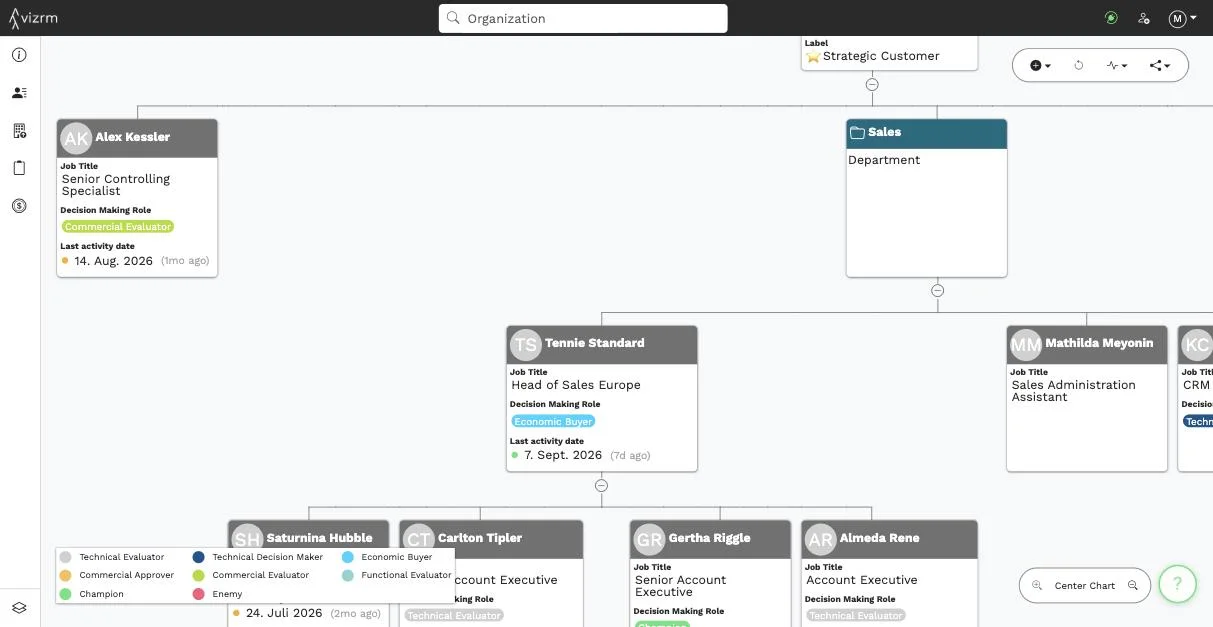
We've rebuilt how views are made & applied to the chart: Open Manage views in the bottom left of the sidebar and edit an example company card and contact card directly: add fields from your CRM, drag to reorder, remove what you don't need. Then colour the cards by any dropdown or number field. A colour per value for something like Decision Making Role, or a low-to-high blend for a number like deal size or activity count.
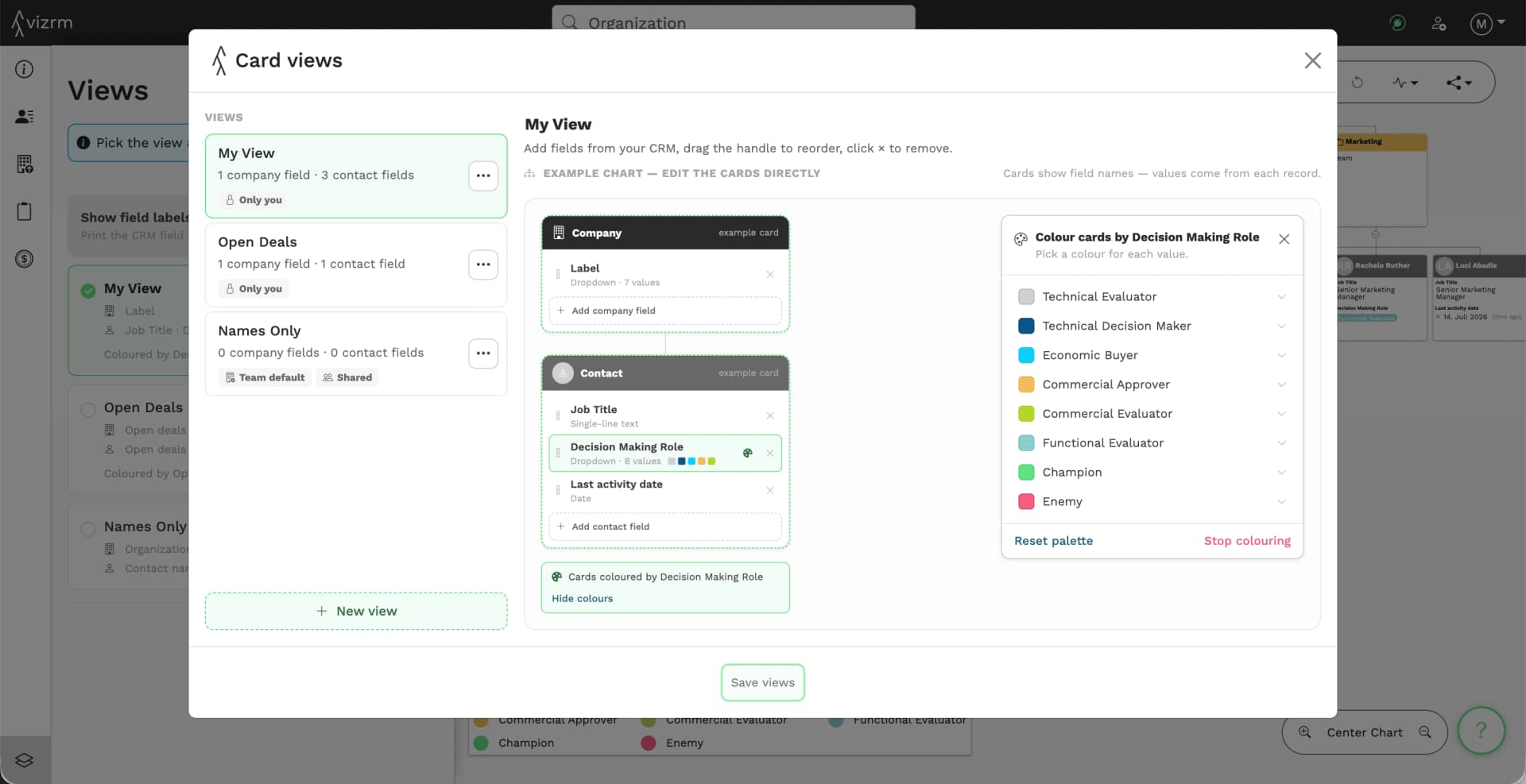
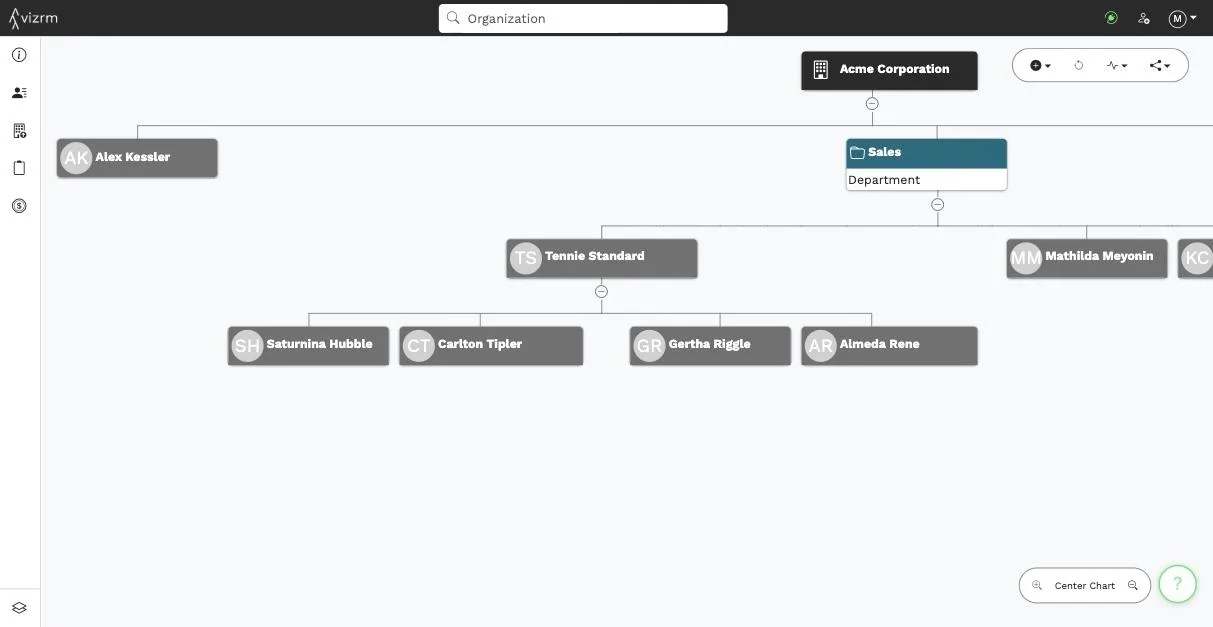
The difference is easiest to see on the same account. Here it is with names only:
And with a view that shows job title, buying role and last activity, coloured by role:
Admins can still share a view with the team and set it as the team default, so everyone reads accounts the same way.
Try it
Templates and the new Views are live for every vizrm workspace today. Open any account, click Templates, and apply Buying Roles. It takes one click, and you'll see right away which seats you still need to fill.
The details are in the help centre: Org Chart Templates and Views.
Jakob