
How to connect LinkedIn to HubSpot
Three ways to connect LinkedIn to HubSpot, what each one costs, and a step-by-step setup for adding LinkedIn contacts to HubSpot with a browser extension - including how to avoid creating duplicate contacts.

There are three ways to connect LinkedIn to HubSpot: HubSpot's native LinkedIn Sales Navigator integration, an automation platform like Zapier, or a browser extension that works on the LinkedIn profile page. For a sales team that wants to add LinkedIn contacts to HubSpot as they prospect, the browser extension is the one that works without a Sales Navigator licence.
Option 1: HubSpot's native LinkedIn Sales Navigator integration
HubSpot has a built-in connection to LinkedIn Sales Navigator. It shows Sales Navigator information on the HubSpot contact and company record, and lets reps send InMail from inside HubSpot.
Two things to know before you plan around it.
It requires a paid Sales Navigator seat for every rep who uses it, in addition to your HubSpot seat. And the part most teams actually want, LinkedIn's two-way CRM Sync, sits on Sales Navigator's top tier, which is priced for large sales organisations.
Good fit if you already run Sales Navigator across the team. Expensive if you do not.
Option 2: Zapier or another automation platform
You can build a workflow that creates a HubSpot contact when a record appears somewhere else. It works, and it is worth doing for high-volume, predictable flows.
It is a poor fit for prospecting. The decision a rep makes on a LinkedIn profile is a judgement call: is this the same Sarah Chen who is already in HubSpot under her old job title, or a different one? A background automation cannot ask that question, so it either creates a duplicate or skips the record.
Option 3: A browser extension
The integration runs on the LinkedIn page itself. The rep sees HubSpot state next to the profile and acts once, while the profile is in front of them. This is the only one of the three that reliably solves the duplicate problem, because a person is there to make the call.
vizrm is one of these. It is on the HubSpot App Marketplace, works on every HubSpot plan, and the steps below set it up. For a wider comparison of what these tools do and do not do, see the five jobs a LinkedIn CRM integration has to handle.
How to add LinkedIn contacts to HubSpot, step by step
- Create a vizrm account and connect HubSpot. The connection runs through OAuth from the HubSpot App Marketplace, so no API keys and no admin ticket.
- Install the vizrm Chrome extension from the Chrome Web Store. It links to your vizrm account on its own.
- Open any LinkedIn profile. The vizrm panel appears next to it, showing whether that person is already a HubSpot contact.
- If they are new, click create. Name, job title, company and LinkedIn profile URL go into HubSpot, attached to the matching company record.
- If they already exist, the panel shows the HubSpot record instead. Update a stale job title in place rather than creating a second contact.
- When you message them or send a connection request, tick the box in the LinkedIn message box to log it in HubSpot as a completed activity.
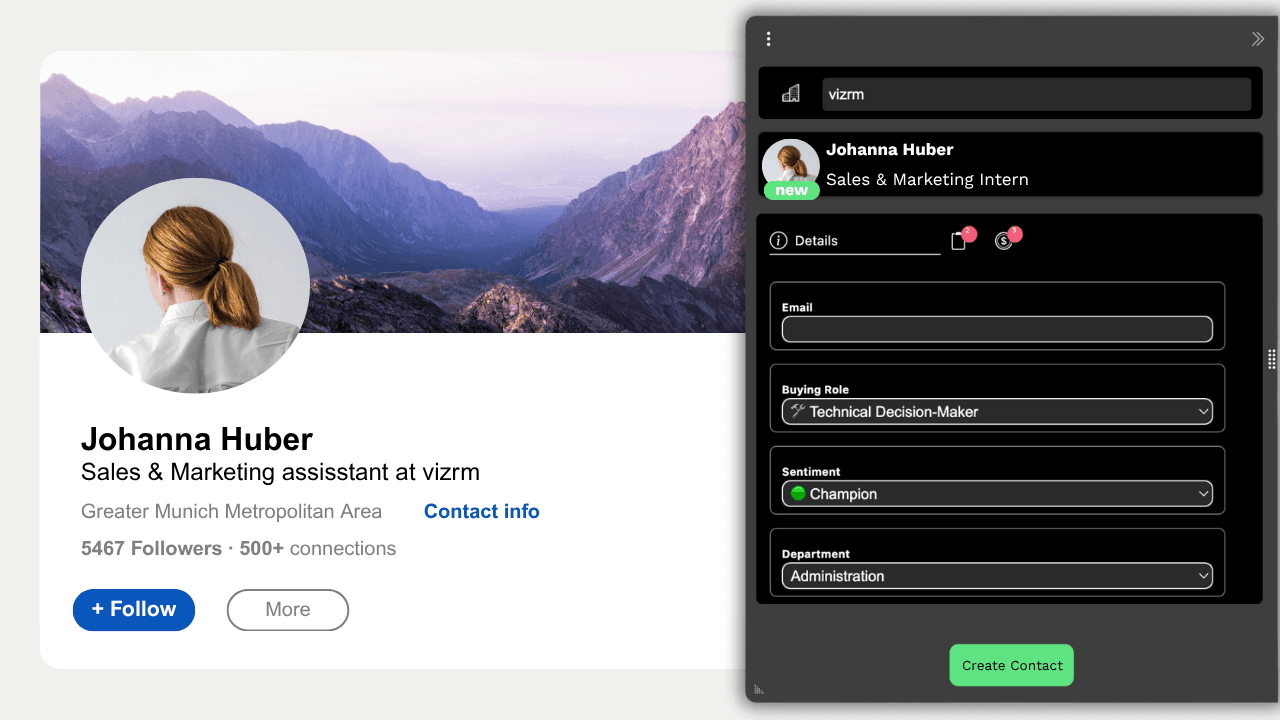
Setup takes about three minutes. Nothing is stored outside HubSpot.
How do I stop LinkedIn contacts creating duplicates in HubSpot?
This is the question worth asking any tool in this category, because it is where the cheap ones fail.
vizrm matches on the LinkedIn profile URL first, then on name and company. When it finds a match (or multiple), it shows you the existing HubSpot record and offers to update it with the LinkedIn information. You see the match before anything is written, so the decision stays with the rep rather than with a rule.
The practical effect: after a quarter of use, contacts in HubSpot have current job titles, because updating one is faster than living with the old one.
What to do with the contacts once they are in HubSpot
A contact record is a row in a list. If you are selling into a company with 300 employees and a buying committee of nine, a list sorted by first name will not tell you who signs, who blocks, and who has gone quiet since March.
vizrm puts every contact you capture from LinkedIn onto an org chart on the HubSpot Company record. Drag people into reporting lines, tag champions and blockers, and the Engagement Heatmap colours the chart by CRM activity so neglected stakeholders stand out. It is the same data HubSpot already holds, arranged so a rep can read the account in a minute.
That is the reason to connect LinkedIn to HubSpot at all. Capture is the means; the account map is the point.
"The LinkedIn and org chart capabilities help us navigate complex channel sales opportunities more effectively." — Jason Krilich, VP of Sales, MetrixData360
Try it on one account
Pick an account you are working now. Install the extension, open the five people you know at that company, and look at the chart when you are finished. If the chart tells you something the HubSpot contact list did not, it is worth the five minutes of setup.
Free to install, 14-day trial, works on every HubSpot plan.