
Pipedrive LinkedIn integration: add LinkedIn contacts to Pipedrive
Pipedrive has no native LinkedIn integration. Here are the three ways to connect them, a step-by-step setup for adding LinkedIn contacts to Pipedrive, and how to avoid duplicate person records.

Pipedrive does not have a native LinkedIn integration, and there is no sign of one coming. LinkedIn's own CRM Sync, the feature that pushes Sales Navigator data into a CRM, does not cover Pipedrive either.
So every working Pipedrive LinkedIn setup is a third-party tool. This guide covers the three approaches.
Does Pipedrive have a native LinkedIn integration?
No. There is nothing built in, at any Pipedrive tier, and Sales Navigator will not sync to it.
That sounds worse than it is. Because there is no half-finished native feature to work around, the tools built for Pipedrive tend to do the whole job rather than patch gaps around something Pipedrive ships. On the HubSpot side, teams spend a lot of time working out which parts of the native LinkedIn connection they are actually entitled to. Pipedrive users skip that question entirely.
The three ways to connect LinkedIn to Pipedrive
Manual copy-paste. Free and universal, and it stops the week the quarter gets tight. The tell is a Pipedrive database full of people with no job title. If you cannot filter on job title, you cannot report on who is in a buying committee, and account reviews run on whoever remembers the most.
An automation platform. Zapier, make.com or similar, moving records on a trigger. Good for predictable volume flows. Poor for prospecting, because the decision a rep makes on a LinkedIn profile is a judgement call: is this the same person who is already in Pipedrive under a job title from two roles ago? A background sync cannot ask that, so it either creates a duplicate or skips the record.
A browser extension. The integration runs on the LinkedIn page, in a panel beside the profile. The seller sees Pipedrive state while looking at the person and acts once. This is the only one of the three that reliably handles the duplicate problem, because a human is present at the moment of ambiguity.
For the wider version of this argument, see the five jobs a LinkedIn CRM integration has to handle.
How to add LinkedIn contacts to Pipedrive, step by step
vizrm is one of these extensions. It is on the Pipedrive Marketplace and works on every Pipedrive plan.
- Create a vizrm account and connect Pipedrive. The connection runs through OAuth, so no API tokens and no admin ticket.
- Install the vizrm Chrome extension. It links to your vizrm account on its own.
- Open any LinkedIn profile. The vizrm panel appears beside it, showing whether that person already exists as a Pipedrive person.
- If they are new, click create. Name, job title, organization and LinkedIn profile URL go into Pipedrive, linked to the matching organization record.
- If they already exist, the panel shows the Pipedrive record instead, so you can update a stale job title rather than create a second person.
- When you message them or send a connection request, tick the box in the LinkedIn message box to log it in Pipedrive as a completed activity.
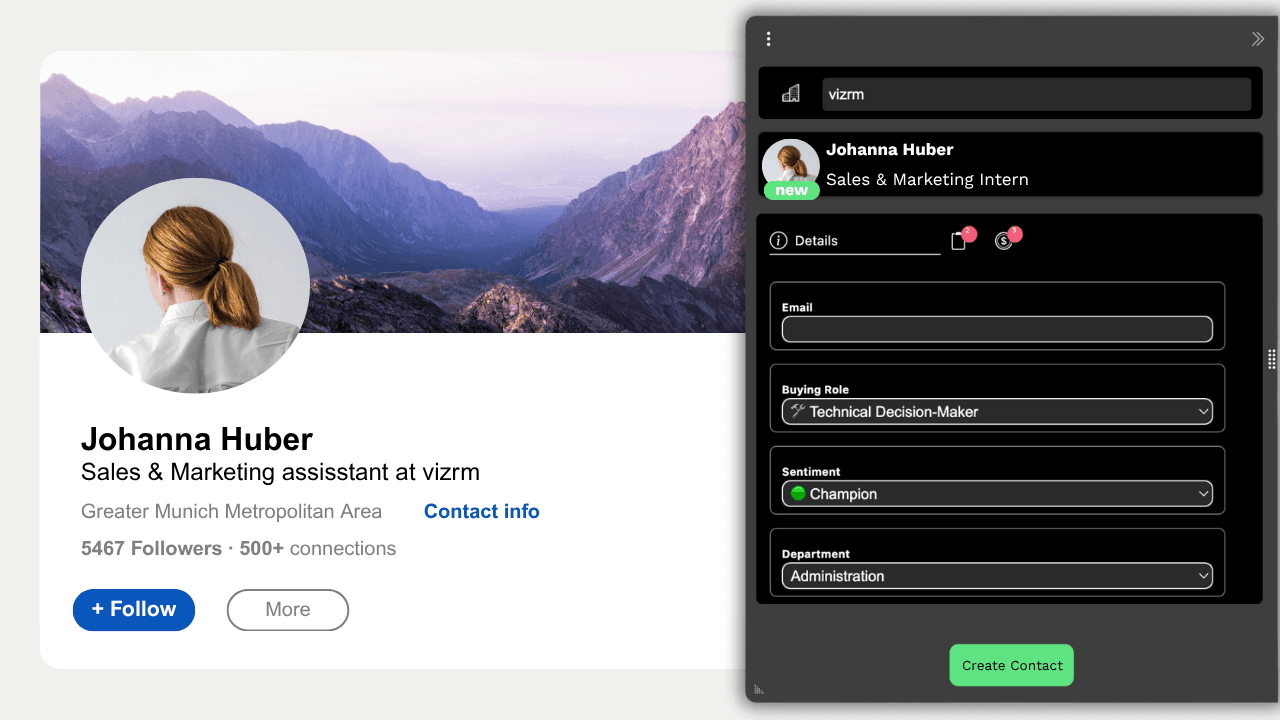
Setup takes about five minutes. Nothing is stored outside Pipedrive.
How do I stop duplicate persons in Pipedrive?
This is the question worth asking any tool in this category, because it is where the cheap ones fail.
vizrm matches on the LinkedIn profile URL first, then on name and organization. When it finds a match it shows you the existing Pipedrive person and offers to update it, and you see the match before anything is written. The decision stays with the rep rather than with a rule.
The practical effect after a quarter: job titles in Pipedrive are current, because updating one is faster than living with the old one.
What to do with the contacts once they are in Pipedrive
A person record is a row in a list. If you are selling into a company with 300 employees and a buying committee of nine, a list sorted by name will not tell you who signs, who blocks, and who has gone quiet since March.
vizrm puts every contact you capture from LinkedIn onto an org chart in the Pipedrive Organization sidebar. Drag people into reporting lines, tag champions and blockers, and the Engagement Heatmap colours the chart by activity so neglected stakeholders stand out.
The part that matters most for Pipedrive specifically: related organizations. Pipedrive's parent, sister and related company links render on the same chart, so a customer that exists in your CRM as eleven separate legal entities reads as one account. That is hard to see in a list view and obvious on a chart.
"I found this tool to be excellent when planning my key accounts as it maps out the reporting lines and inter-company structures. The seamless integration between LinkedIn and Pipedrive has made our sales process more efficient and effective." — Mark Gordon, Head of Business Development, Net1.ie
Try it on one account
Pick an account you are working now. Install the extension, open the five people you know at that company, and look at the account map you have built when you are done. If it tells you something the Pipedrive person list did not, the five minutes of setup paid for itself.
Free to install, 14-day trial, works on every Pipedrive plan.